Read customer information together.
Bring conversations, contacts, opportunities and next actions into a shared customer history. Help your team prepare before the next conversation.

TrueERP CRM - Customer relationship management
Bring customer work together, from the first conversation to after-sales support. Qualify leads, move opportunities forward and track the next action and sales results in the same CRM.
Real TrueERP screens - Turkish interface - Sample data
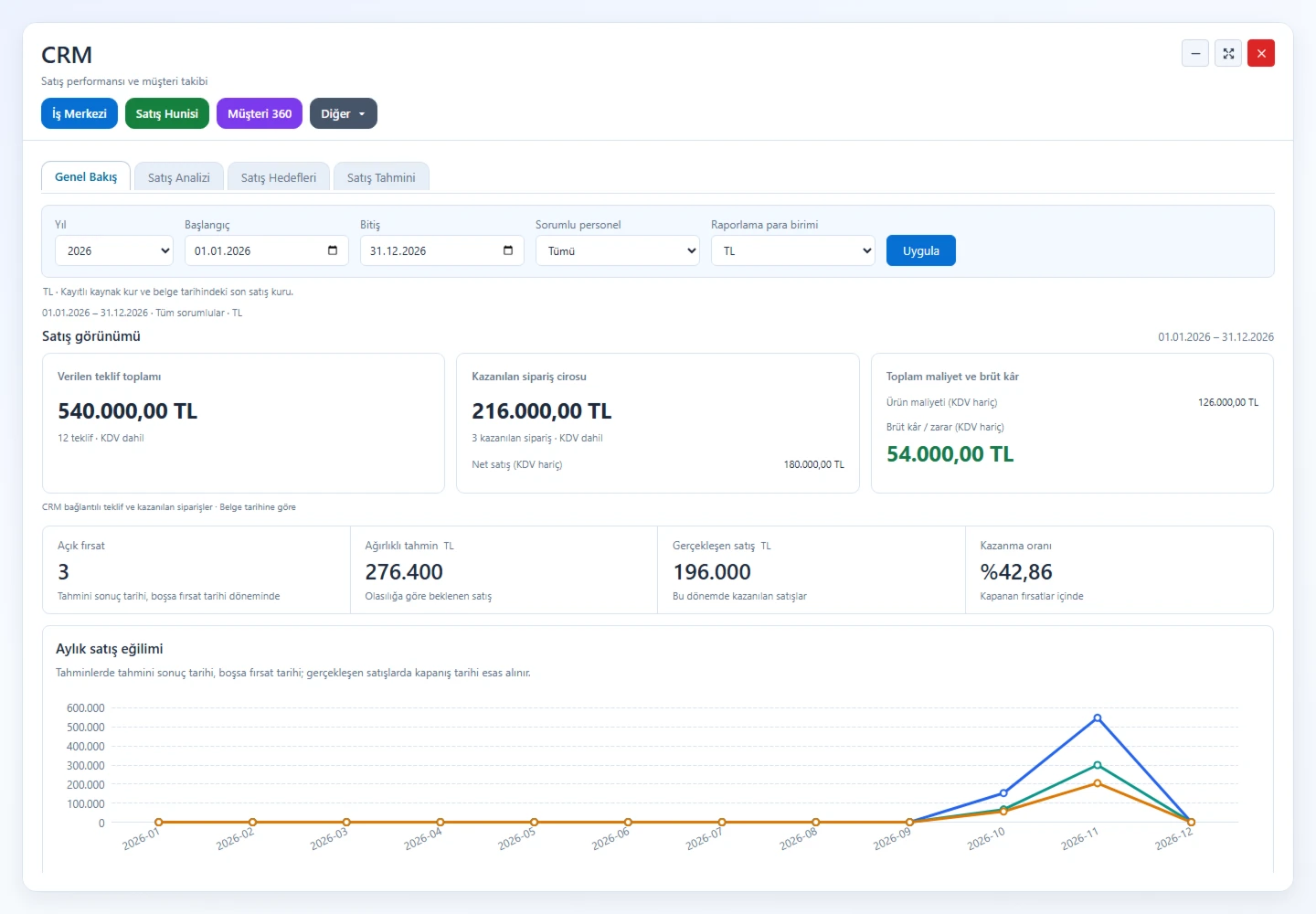
Bring conversations, contacts, opportunities and next actions into a shared customer history. Help your team prepare before the next conversation.
Track work through stages, from lead to quote and order. Evaluate targets, open opportunities and period forecasts together.
Use activities, routing rules, follow-up sequences and workflows to identify owners and the next task. Include support in the after-sales process.
From the first contact to after-sales support
Sales, marketing, support and management teams work with customers at different stages. CRM helps track this work alongside the related records.
Clarify the need, budget, decision-making authority and target date.
Keep the stage, amount, probability and follow-up activity up to date.
Track the customer request alongside product and document information.
Track conversations, support requests and service outcomes.
Leads and Customer 360
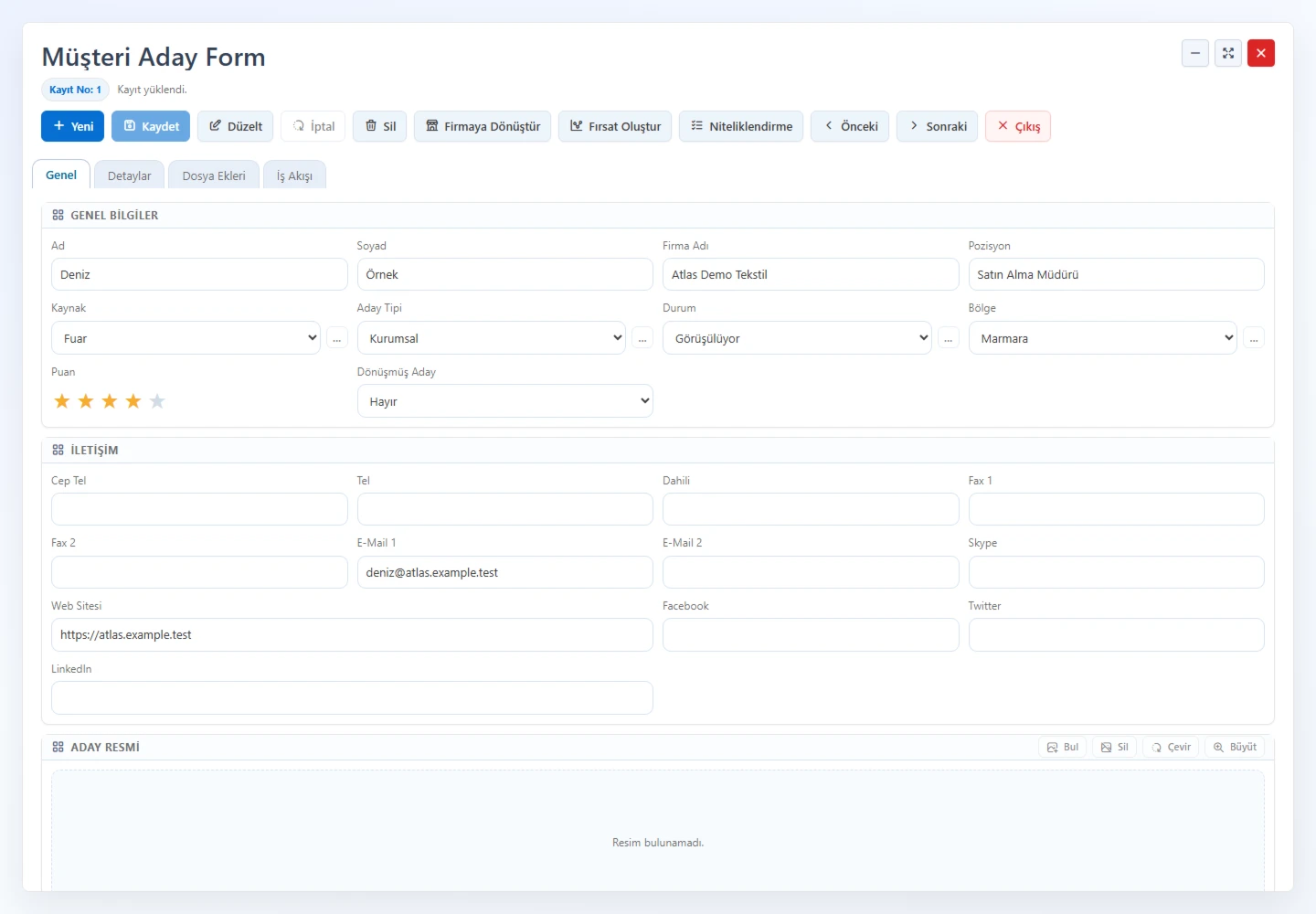
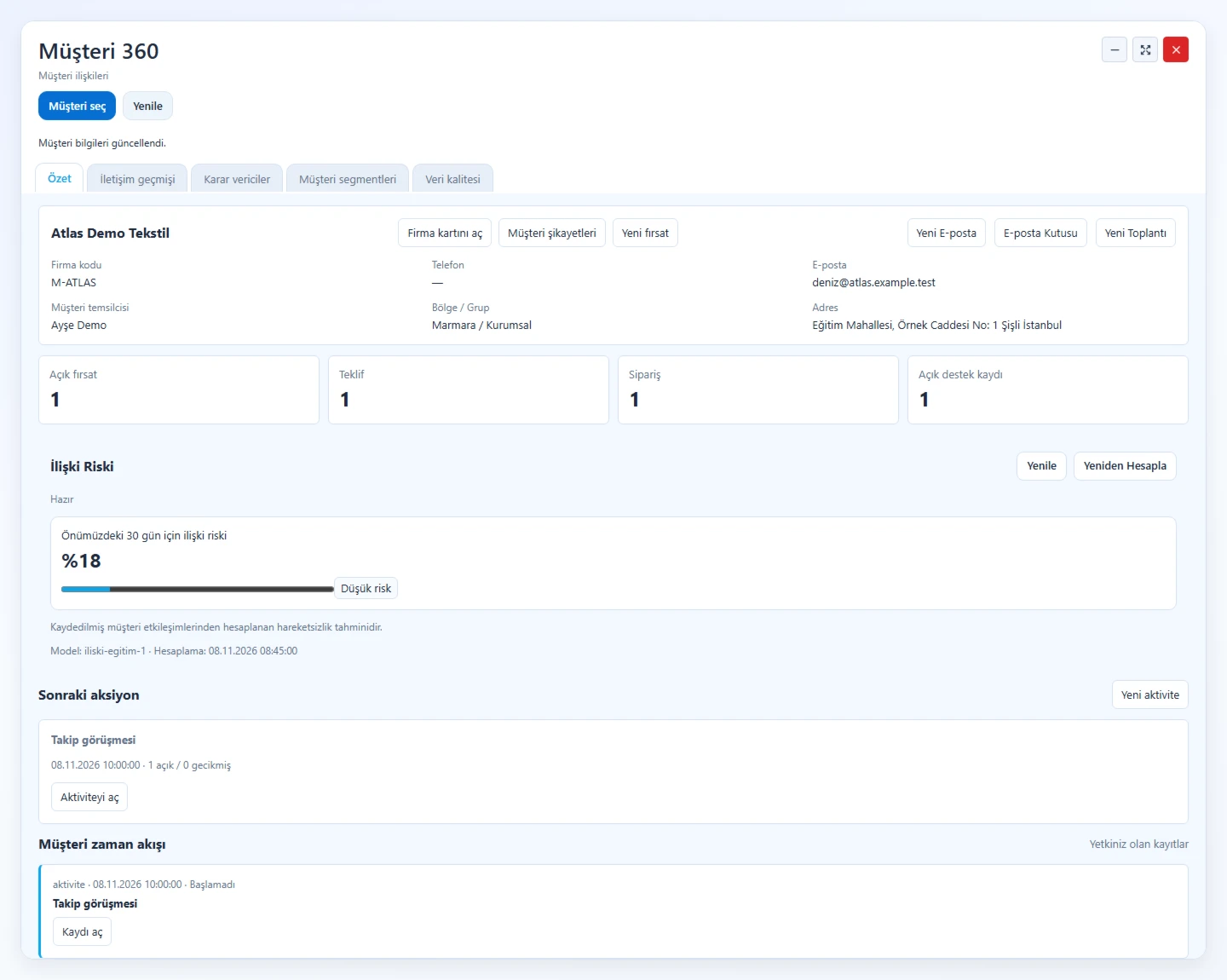
Assess the need and decision process. Use Customer 360 to see contacts, communication history, open opportunities and the next action together. Organize customer information through segments and data quality tools.
Sales opportunities and pipelines
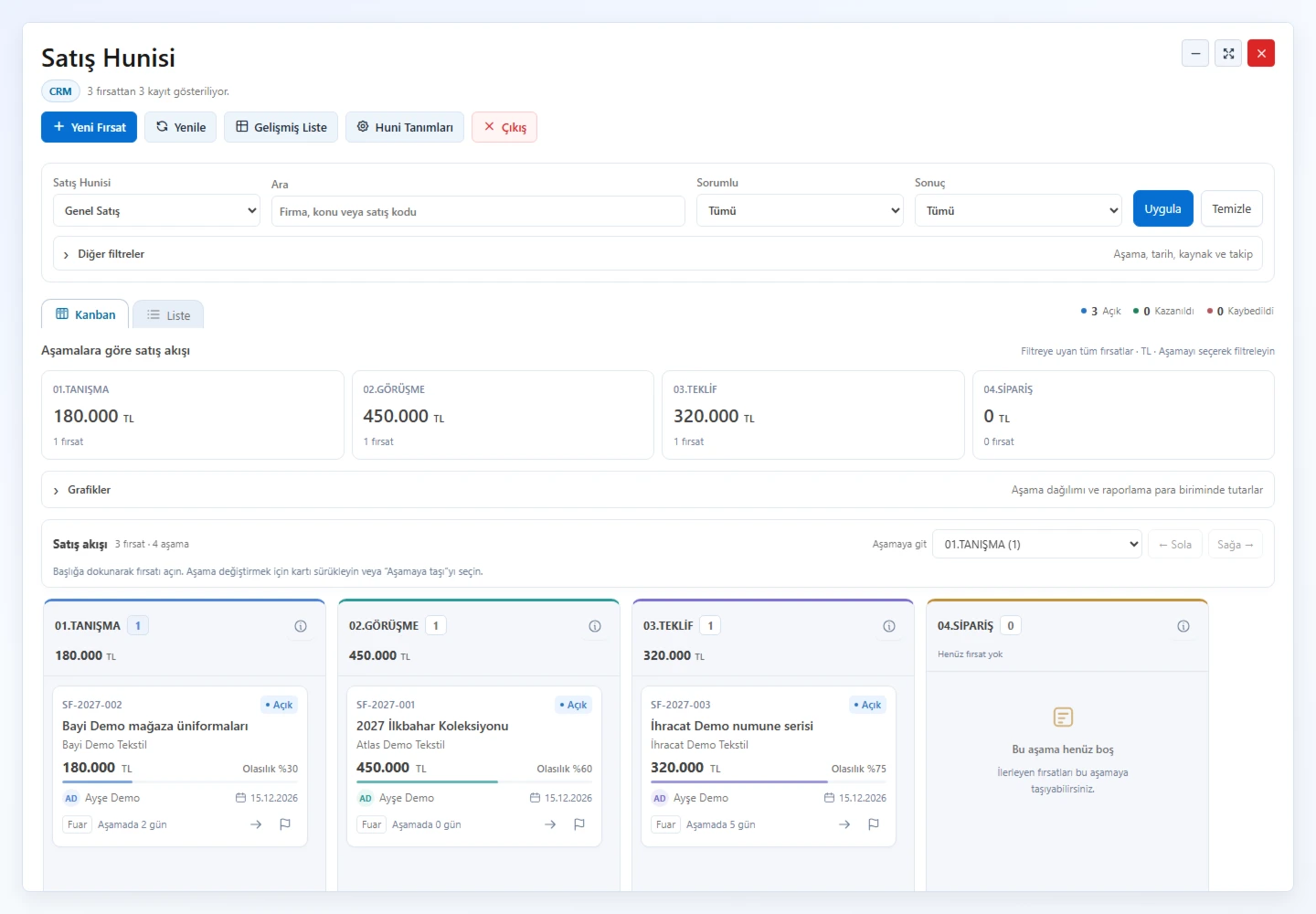
Track opportunities in Kanban or list views. Review the owner, stage, expected amount, probability and estimated outcome date together.
Communication, marketing and workflows
Manage email and meetings through connected accounts. Plan email and call steps with quote follow-up sequences, and connect team work through web forms, campaigns and workflows.
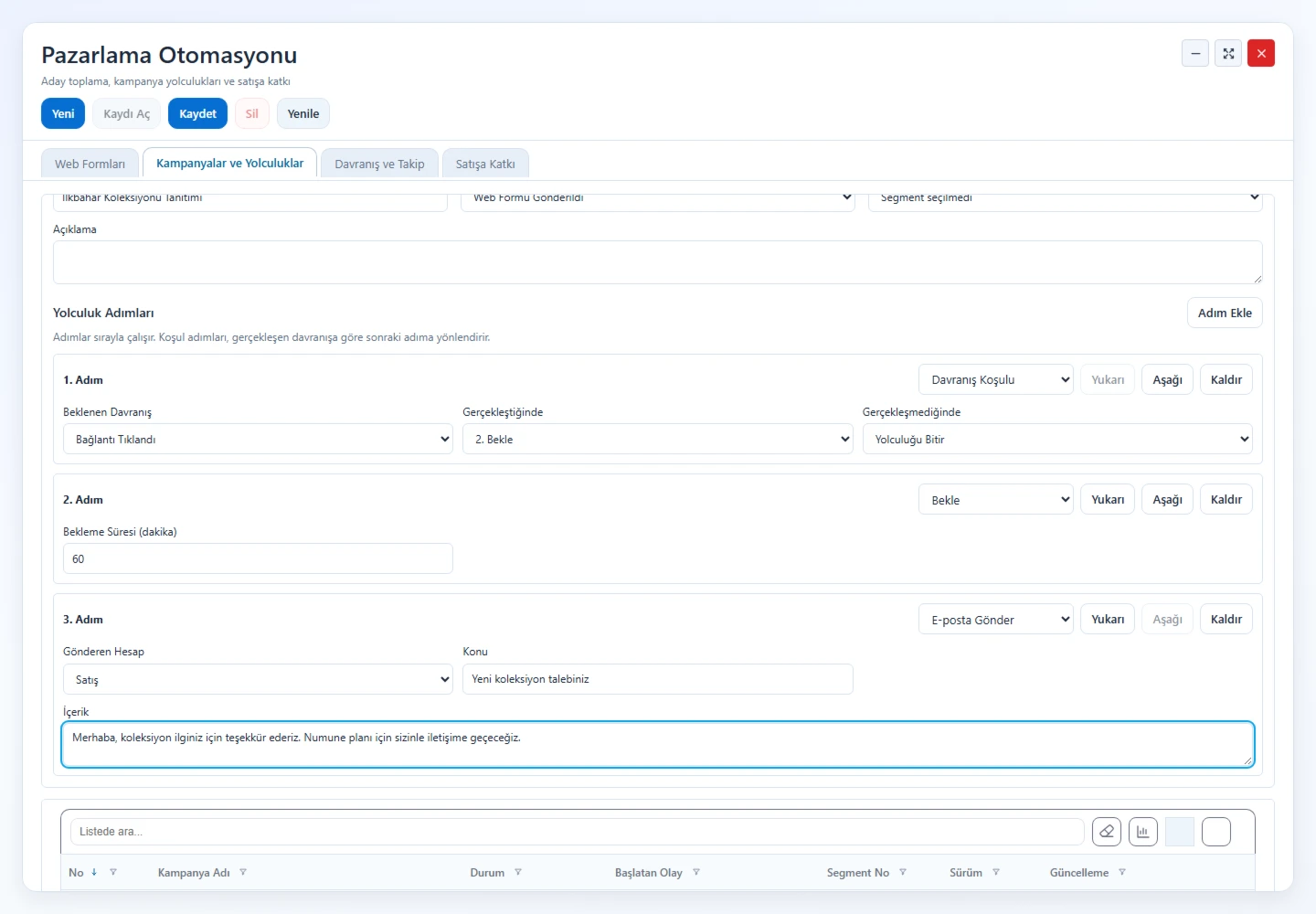
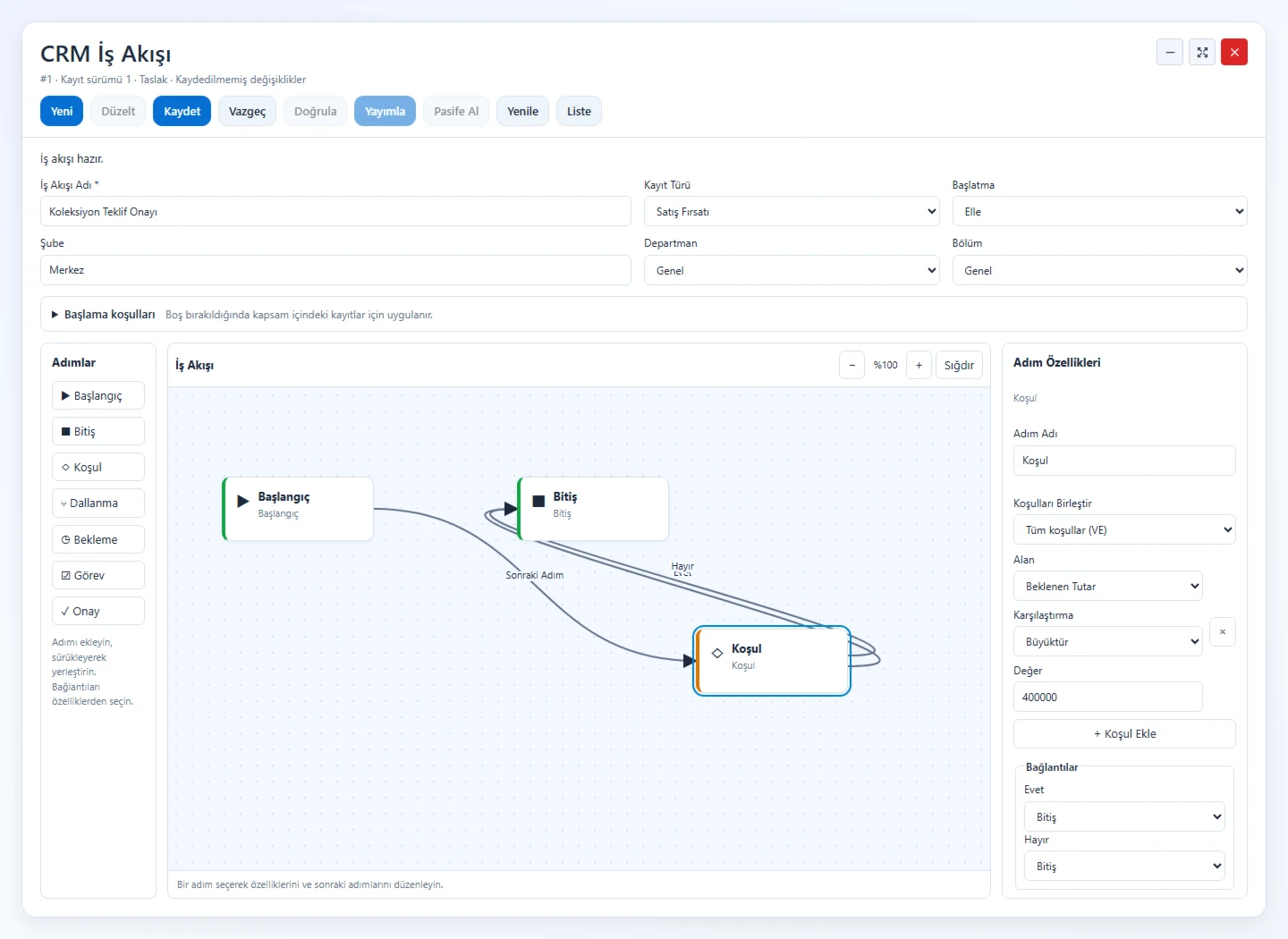
Email and channel operations require connected accounts; automated processes require appropriate configuration, publication and user permissions.
Support and service management
Manage complaints, support conversations and resolution actions alongside the customer. Monitor first-response and resolution targets with service policies.
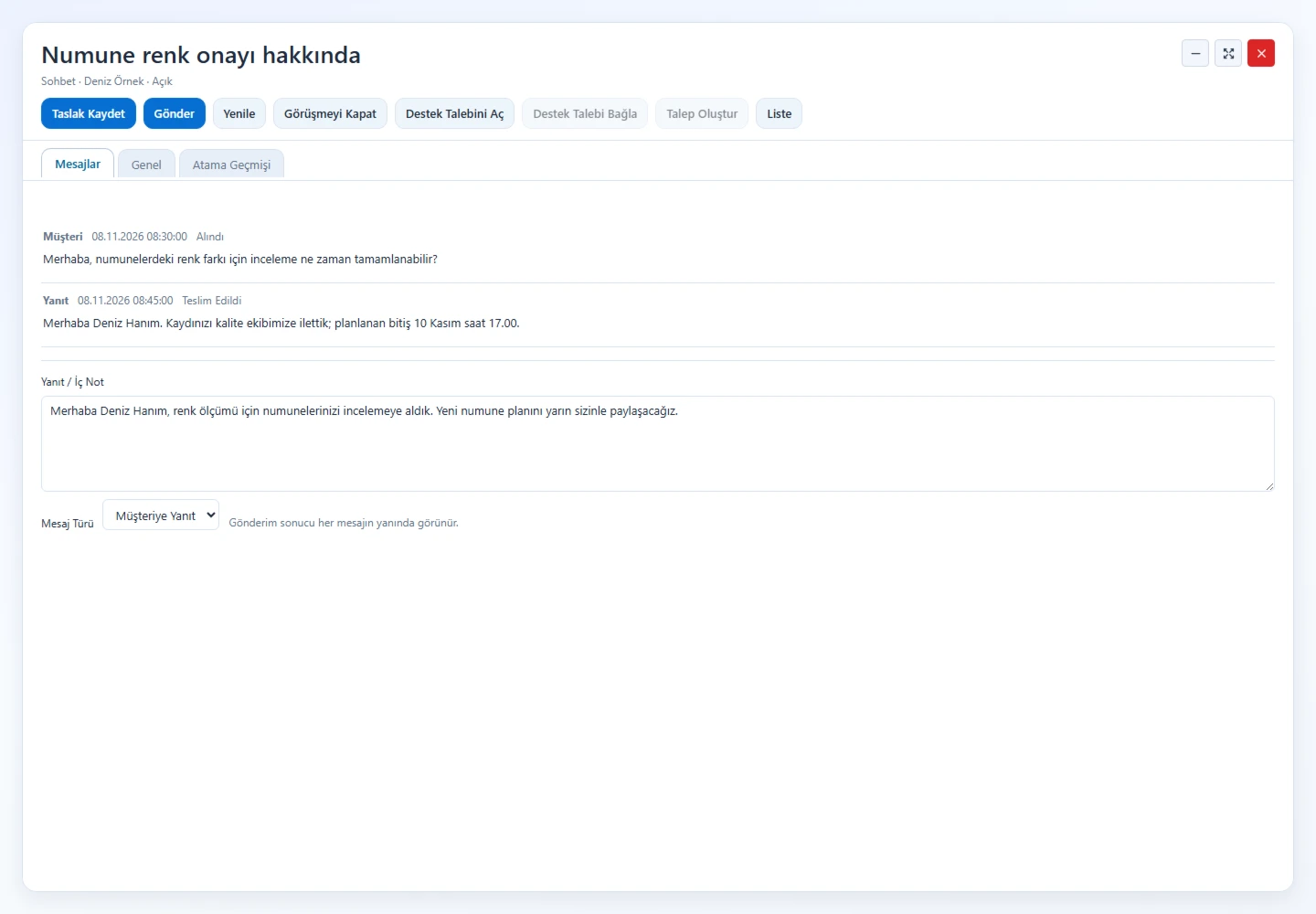
Sales analysis, targets and CRM AI
Review sales by period, owner and reporting currency. Compare targets, weighted forecasts, Commit and Best Case views with the manager forecast.
Preserve earlier forecasts with period snapshots and assess accuracy. Read CRM AI opportunity and relationship-risk insights alongside data-readiness and freshness information.
AI scores are not produced without sufficient historical data and validation.
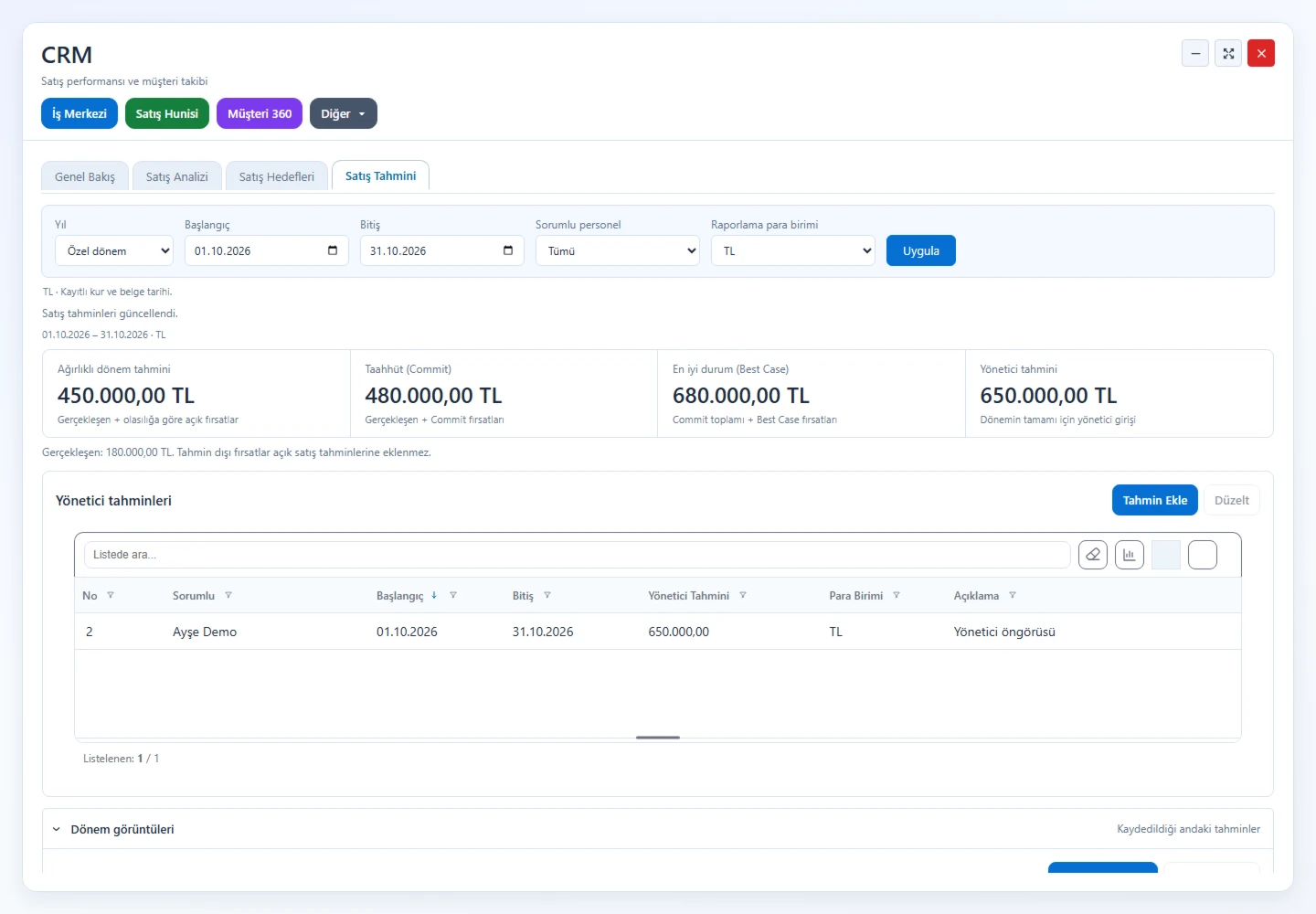
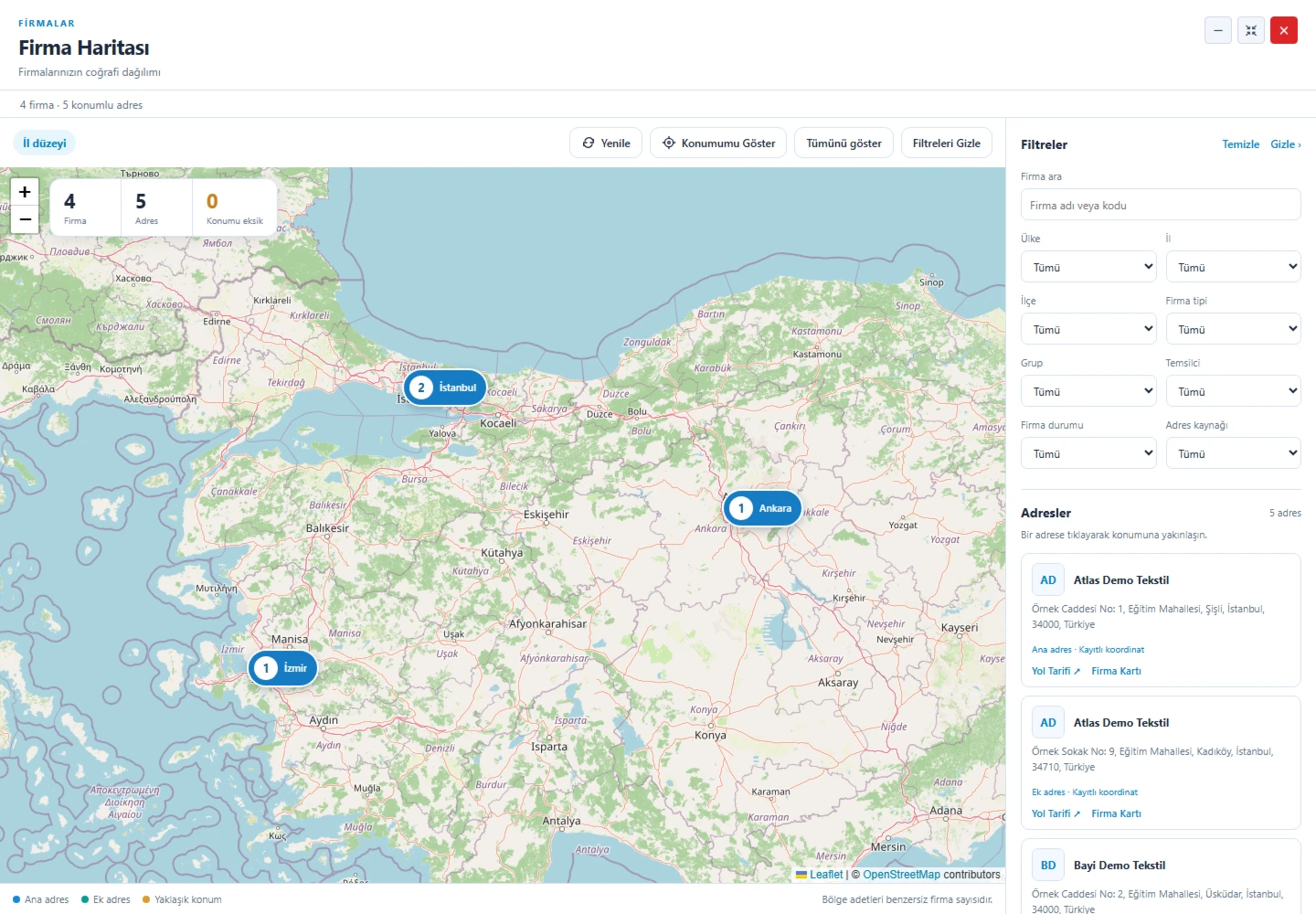
Company Map
Narrow the companies through map filters and review the geographic distribution of your customer portfolio and nearby companies. Access company information from the map record when preparing a field conversation.
Assess proximity by straight-line distance and open directions in Google Maps. Check recorded addresses and locations before a visit.
Using the device location to find nearby companies requires browser location permission. Straight-line distance does not represent road distance or travel time.
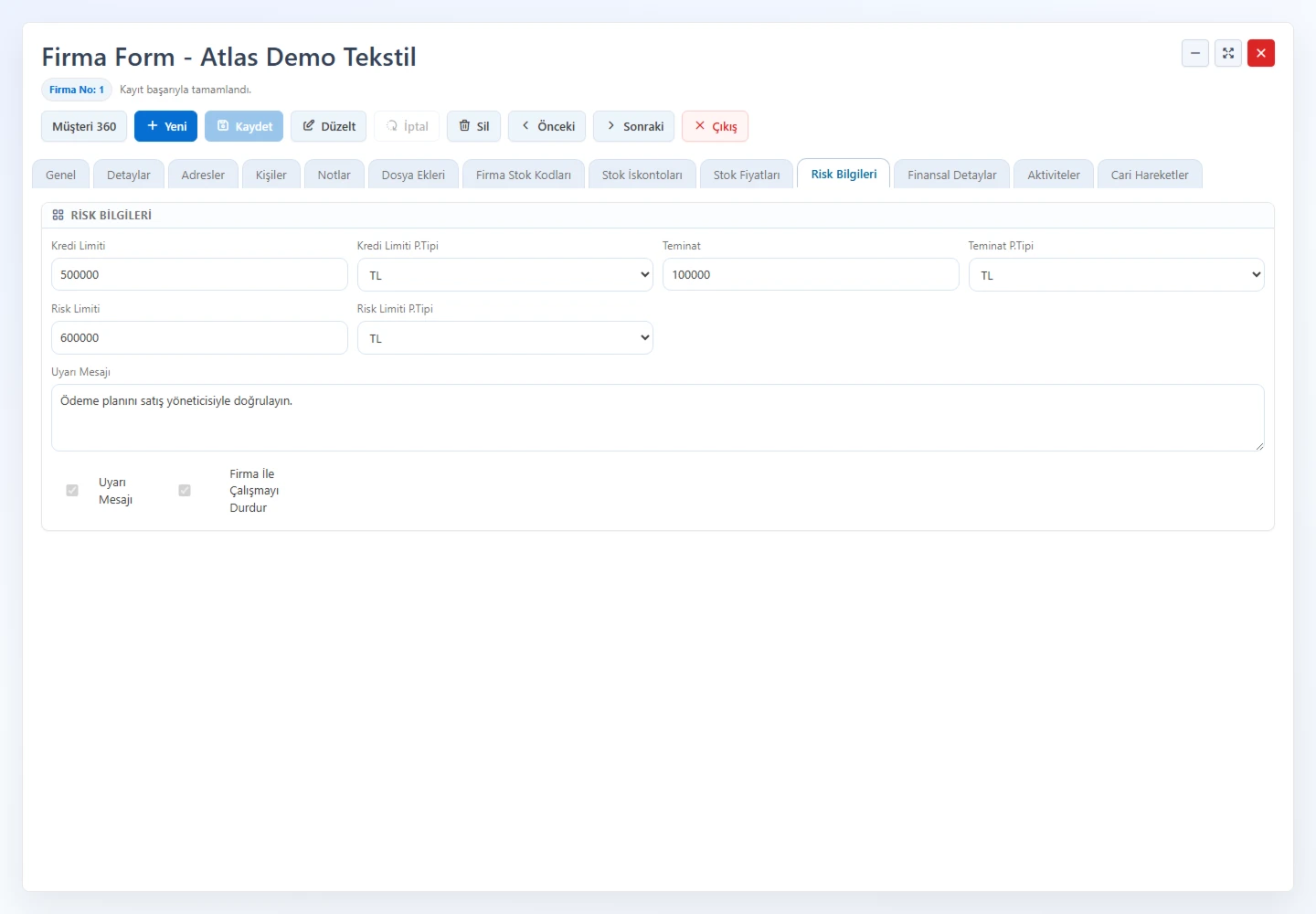
Company risk tracking
Review Credit Limit, Collateral and Risk Limit information alongside the currency types. Evaluate sales and collection conversations with the financial position of the company.
Review Warning Message and Stop Working with This Company as part of the company working decision. Evaluate screen warnings together with the relevant user permissions and your company policies.
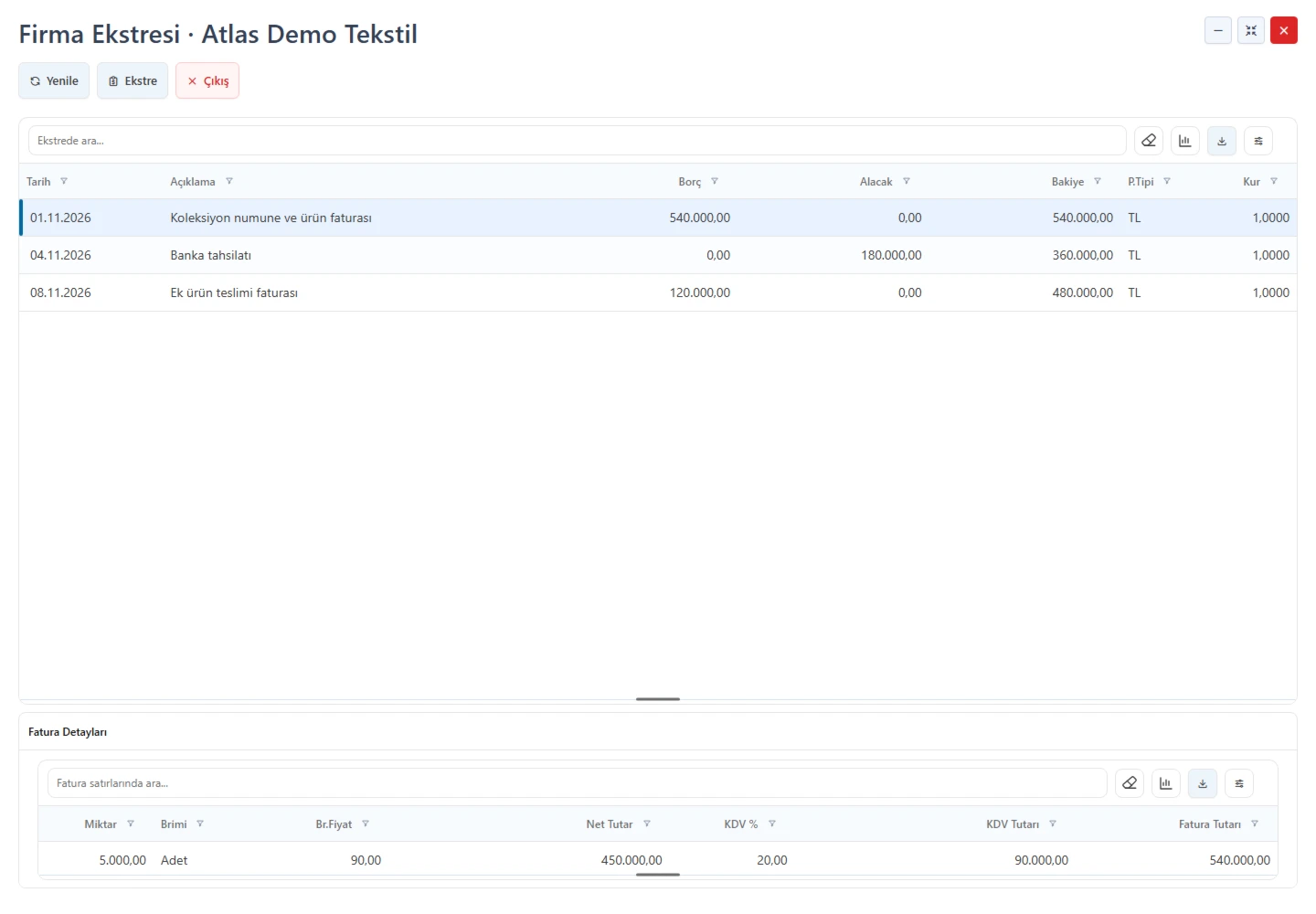
Company account statement
Authorized users can generate a company account statement for the selected period and account type, and review debit, credit and balance movements in detail.
Check the period and account scope together when discussing an account with a customer. Review transaction details through the company movements.
A company accounting link, an appropriate account setup and operation permission are required. Available export options can be used within the granted permissions.
Illustrated user guide
Explore CRM capabilities in the Turkish PDF guide. Review lead, sales, communication, marketing, support and management procedures through real screens and example scenarios.
Your questions
Let’s find the right approach for your business.
Leads, Customer 360, sales opportunities and pipelines, activities, email and calendars, follow-up sequences, marketing automation, workflows and support can be managed together. The scope is determined alongside user permissions and configured connections.
Assess the need, budget, decision-making authority and target date, then continue through company conversion and opportunity creation. Quote and order links can be tracked from the opportunity record.
Authorized users can manage correspondence and meetings through connected accounts. Google and Microsoft accounts support email and calendars; Yandex connections support email. Provider connections, synchronization and account sharing must be configured.
Follow-up sequences plan email and call steps after a quote. Workflows can include conditions, waits, tasks and approvals. Ready-to-use processes and appropriate permissions are required, along with a connected account when sending messages.
Complaints, support conversations, owners and resolution actions can be tracked. Service policies monitor first-response and resolution times, while the customer portal tracks requests and replies. Channel and portal features require the relevant connections and settings.
Opportunity predictions use historical sales outcomes; relationship risk uses recorded customer interactions. Scores are not produced without sufficient history and validation. Evaluate these insights alongside sales targets and period forecasts.
Use Company Map filters to narrow the company set and review geographic distribution and nearby companies. Assess straight-line distance and open directions in Google Maps. Using the device location requires browser location permission.
Review Credit Limit, Collateral and Risk Limit information alongside the currency types. Warning Message and Stop Working with This Company are also fields relating to the company working relationship. Evaluate these details alongside screen warnings, user permissions and your company policies.
Authorized users can generate a company account statement for the selected period and account type, and review debit, credit and balance movements in detail. A company accounting link, an appropriate account setup and operation permission are required. Available export options can be used within the granted permissions.
Let’s get started
Let us discuss how your sales, marketing and support teams work, and evaluate the CRM scope that fits your needs through an example demo.