Open screens and fill fields.
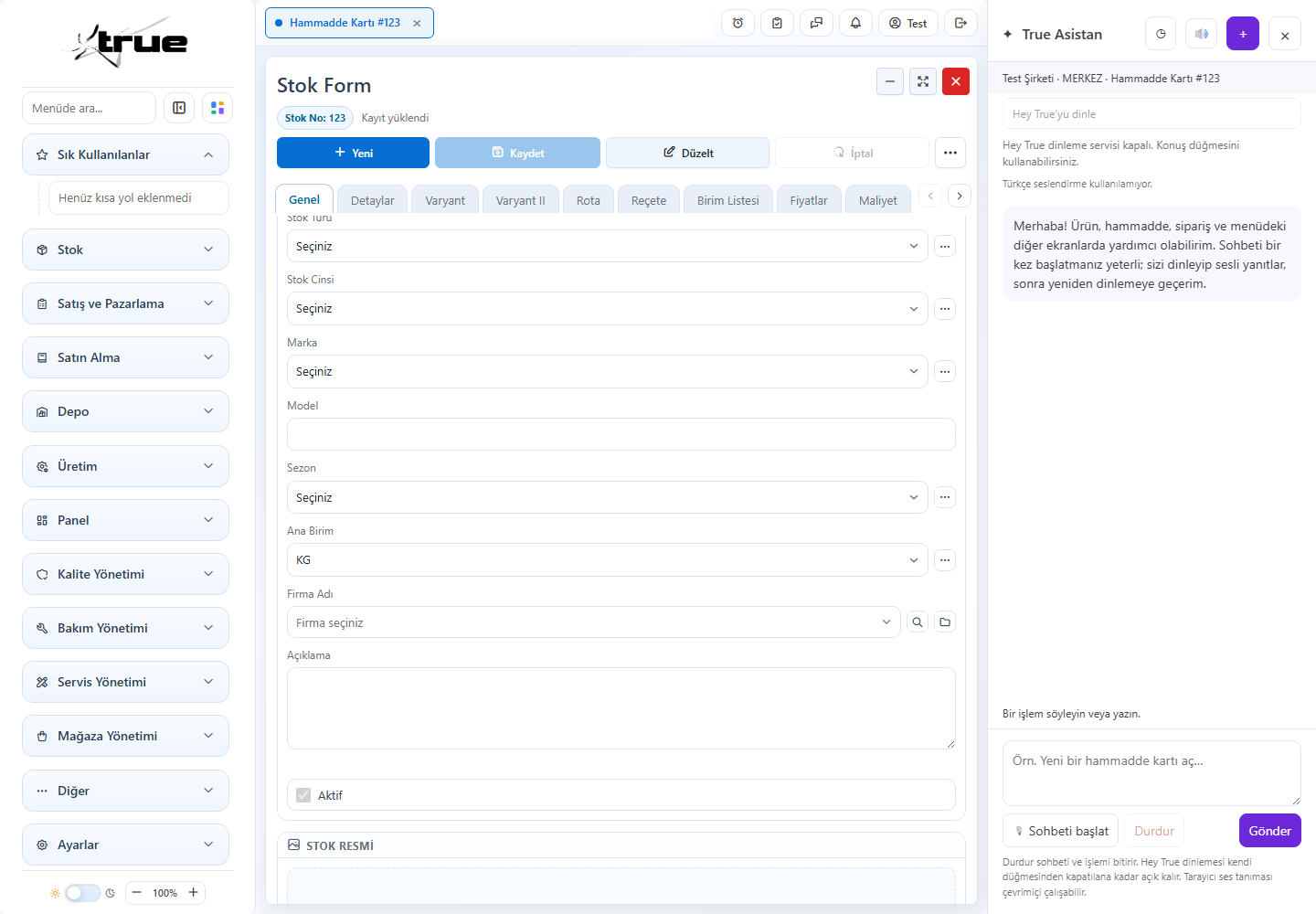
Open an order or quote form and prepare customer, product, variant, quantity and price details in visible fields. Approve the detail draft and complete the final Save action yourself.

True AI · Assistant and agents
Use the assistant in True ERP's web version to open screens and fill visible fields. Manage customer and product searches, order drafts from documents and the approval process with agents.
Assistant and agent workflows in True ERP's web version; available modules depend on your installation and version.
See it in 26 seconds
This screen recording with Turkish narration shows the order form opening, draft approval and product fields being filled. It uses the Turkish interface and sample data.
In your daily workflow
The screen assistant helps you work in an open form. Agents handle defined tasks and order drafts through review and approval steps.
Open an order or quote form and prepare customer, product, variant, quantity and price details in visible fields. Approve the detail draft and complete the final Save action yourself.
Search for the customer and product by name or code. Choose the correct record when there are multiple matches, and select a variant from that product's options.
Bring order rows from CSV, XLSX or PDF into a draft. Compare the source using cell and page references, and review dimensions and product wizard answers.
Prepare reports from data you are authorized to access with requests such as “Report last month's order quantities and amounts by customer.” Check the preview and export the result as XLSX or PDF.
If voice features are configured, grant microphone permission, speak your request, check the transcript and receive a spoken response. Visible approval steps also apply to voice commands.
Fill the Reminder form with a specific request such as “Remind me to call the customer tomorrow at 2:30 PM.” Missing dates or times are requested, and the result is confirmed by the save response.
Use a configured email connection to identify order requests and review ambiguous messages separately. Bring document and customer details together in a draft awaiting approval.
Ask questions such as “How do I add a variant to an order?” Review answers with their guide and screen titles, and choose when to open the related screen.
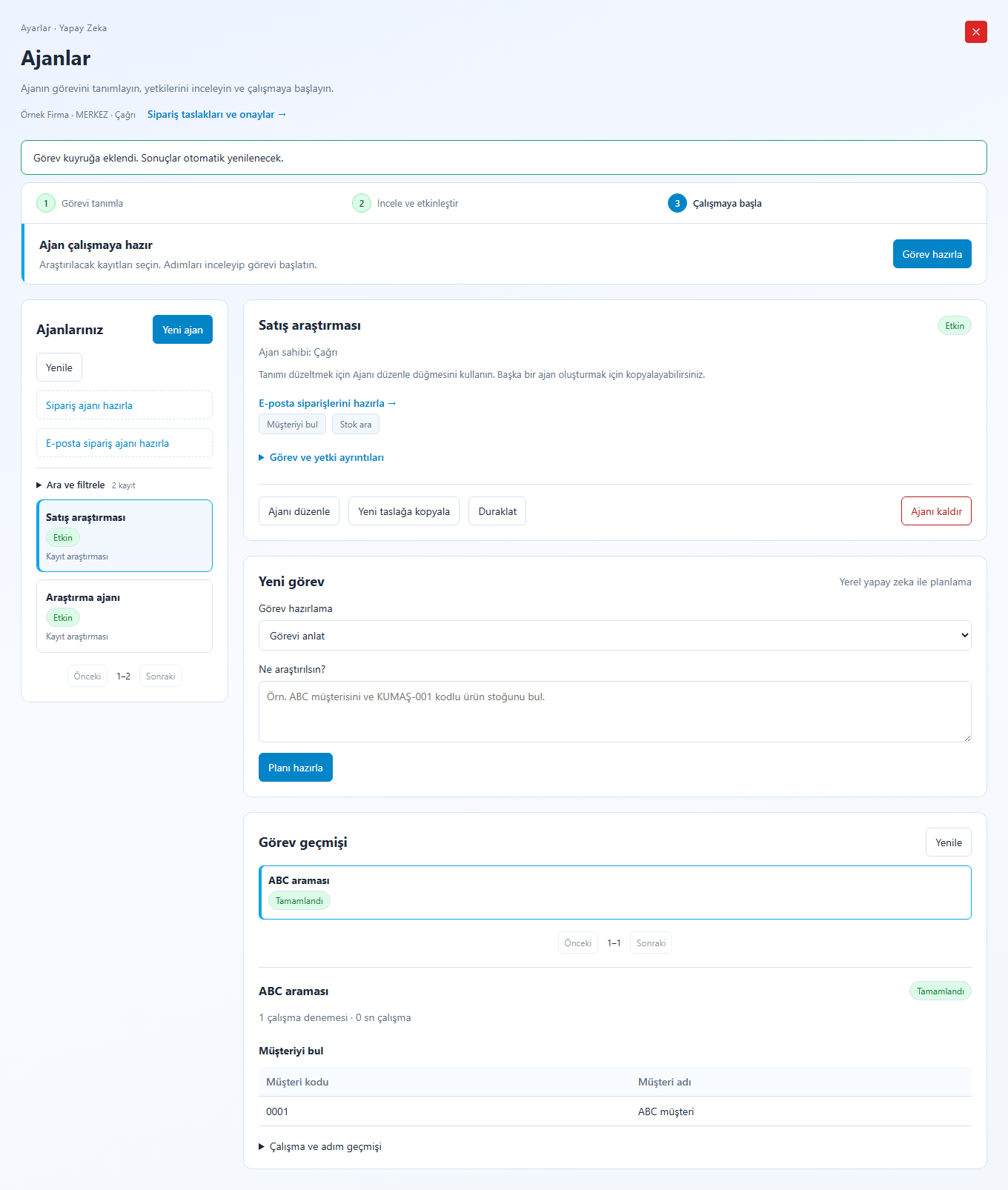
Review the agent's task scope and permissions. Check and approve the order, then track execution steps and results in task history.
From a request to a workflow
Sample requests are evaluated against existing customer and product records. Screen, document and email workflows are selected together for your installation.
Textiles · Screen assistant
Create a new order, customer ABC Tekstil, product Lacoste, variant Red, variant 2 XL, quantity 100 units, price TRY 5.
Made-to-measure manufacturing · Document draft
Order file: width 150 cm, length 80 cm, 10 units.
Customer orders · Email agent
Order: HAM-001, 100 units. Order table attached.
Inside the product
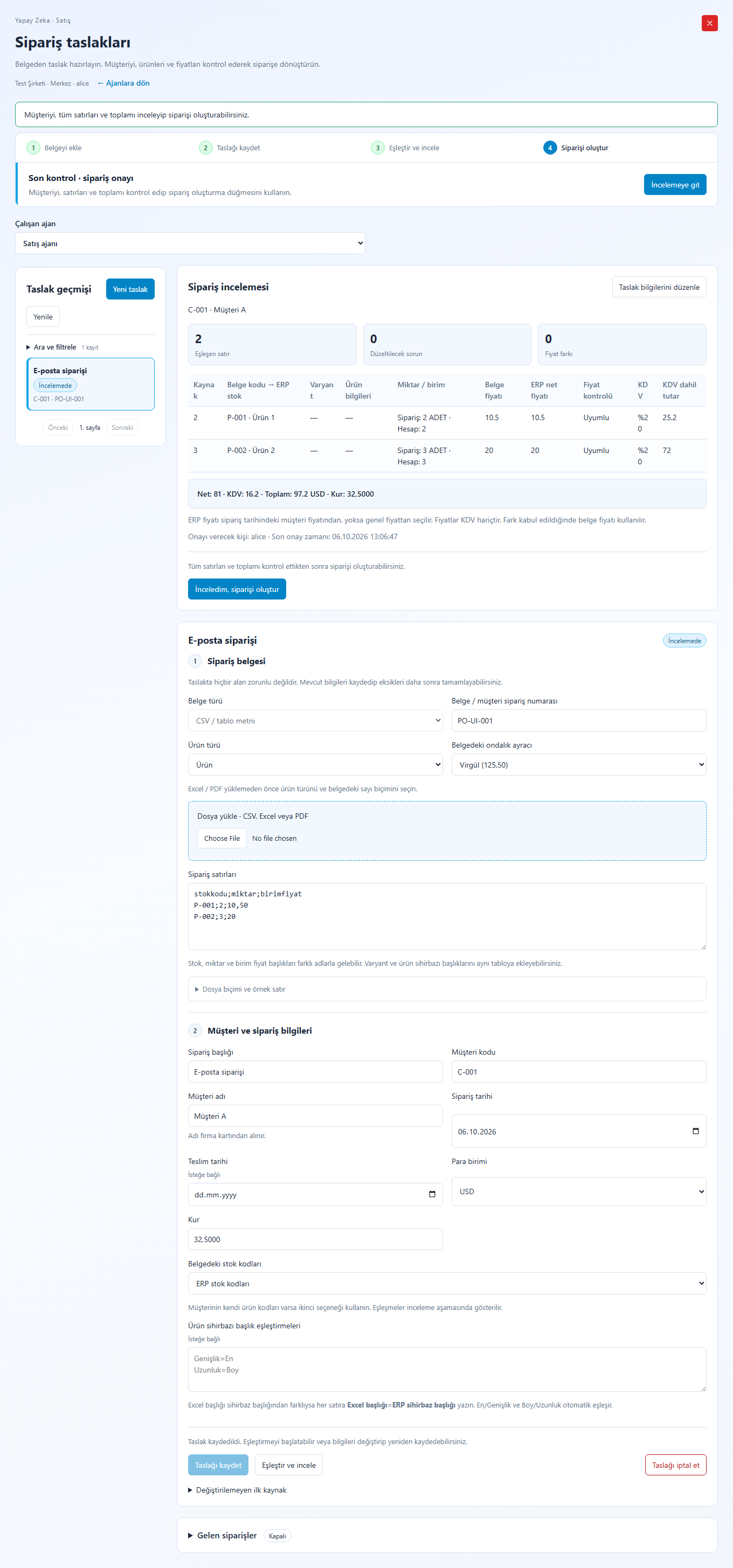
See the agent's task, execution history and final order review in the True ERP web interface. Open the images to explore the full screens.
Screenshots and the recorded ERP commands are shown in Turkish.
Stay in control
You review the visible form with the screen assistant and the order draft in the agent workflow. Reading the document, giving final order approval and saving are separate steps.
Compare text and dimensions read from a PDF with the source document. Missing fields, ambiguous records and calculation differences are resolved during review.
Describe your request to the screen assistant or add an order document to the agent workflow. Use a configured connection for email workflows.
Form fields or the order draft become visible. Review the customer, products, variants and document sources.
Resolve ambiguous matches and verify quantities, prices, dimensions and calculated product details.
With the screen assistant, you use the form's Save button. In the agent order workflow, the ERP record is created after your explicit approval and can be tracked in task history.
A bridge between AI and ERP
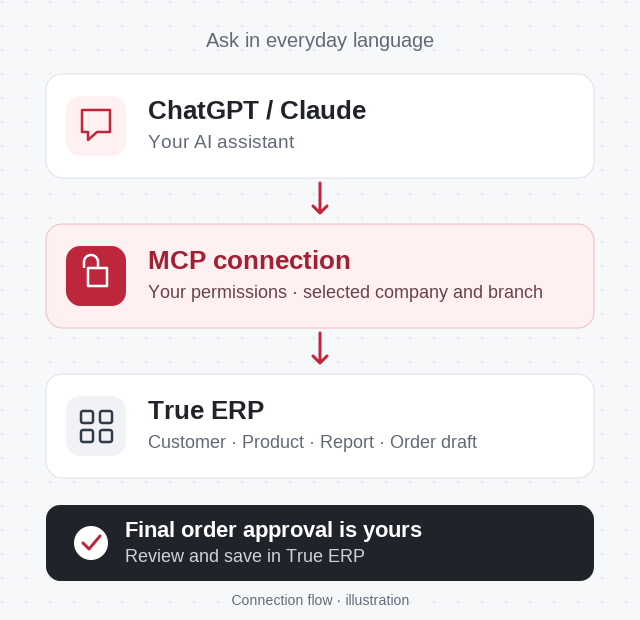
Our MCP connection lets your AI assistant communicate with True ERP. Describe what you need in everyday language: find customers and products, request reports or prepare an order draft.
Think of MCP as the connection between your AI assistant and your ERP.
Enter a customer or product name to find matching records you have permission to view.
Use supported reports to review, for example, last month’s order quantities and amounts by customer.
Prepare a draft from order details, find earlier drafts and make corrections. Open True ERP for the final review and order approval.
Review messages received by True ERP’s configured mail service and turn ready order requests into drafts while preserving their sources.
Your questions
Let’s find the right approach for your business.
Once MCP is configured and your account supports it, you can use the permissions you grant to find customers and products, request supported reports, and prepare or edit order drafts. Ready order messages in True ERP’s configured mail service can also become drafts. Final review and approval of the actual order take place in True ERP. Live use requires server setup and validation for your business.
This page shows assistant and agent workflows in the web version of True ERP. Available modules depend on your installation and version. During your demo, we will define the screens, document workflows and email connection available to your business.
It can open screens you are authorized to use, fill visible editable fields, and help select customers, products, variants, quantities and prices in orders and quotes. If more than one record has the same name, it asks you to choose. It answers usage questions using guides and screen sources. Its field-filling workflow is limited to a single order or quote detail row.
Before opening an order or quote detail, it asks for visible approval of the draft created by ERP. The assistant fills fields on screen; the user completes the form's final Save action. In the agent order workflow, the draft goes through a separate review and is saved to ERP after your explicit order approval.
Rows from CSV, XLSX and PDF documents are brought into an order draft. Source references, such as Excel cells or PDF pages, appear during review. You check the customer, products, variants, quantities, prices and product wizard answers. Missing or ambiguous details are resolved before the order is saved with your approval.
If the email connection and order agent are configured, incoming messages are classified as orders, other messages or messages requiring review. Order documents and customer details can be brought into draft review. Ambiguous messages are checked separately; the ERP order is created with user approval.
Actions follow the user's and agent's permissions. Ambiguous customer or product matches are clarified, and the source document, quantities, prices and calculated product details are reviewed. Changes to the draft require renewed approval. Agent steps and results can be tracked in task history.
Let’s get started
Share a sample order, customer document or daily usage question. We will define the web assistant and agent scope for your business together.