Manage product information together.
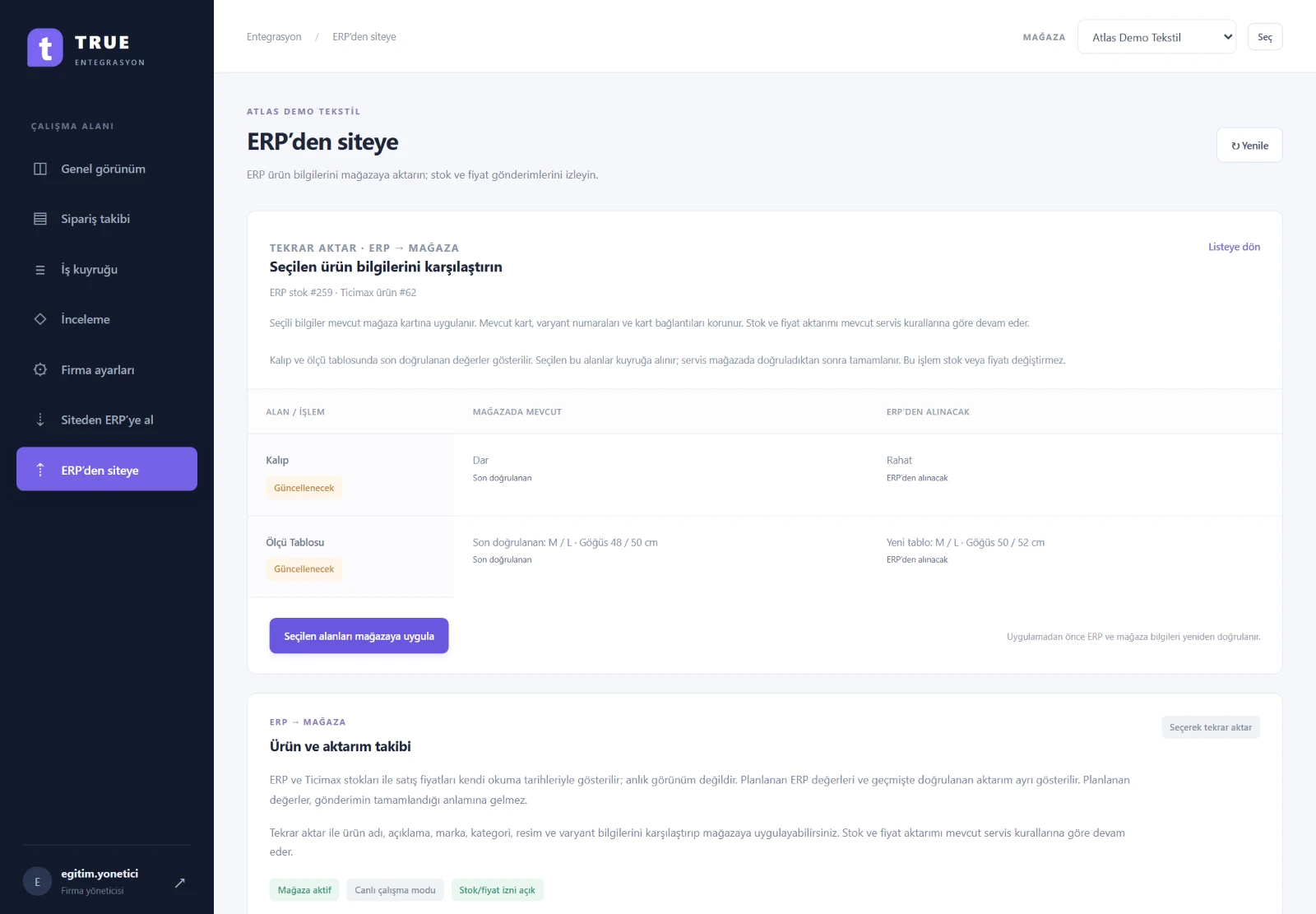
Connect product records, photos and variants. Compare and transfer only the fields you want to update in an existing product.

TrueERP · Ticimax integration
Manage product records, colours and sizes together. Publish ERP stock and prices to your store, bring store orders into your ERP workflow, and follow the progress of each transfer from one panel.
Actual panel screens · Turkish interface · Sample data
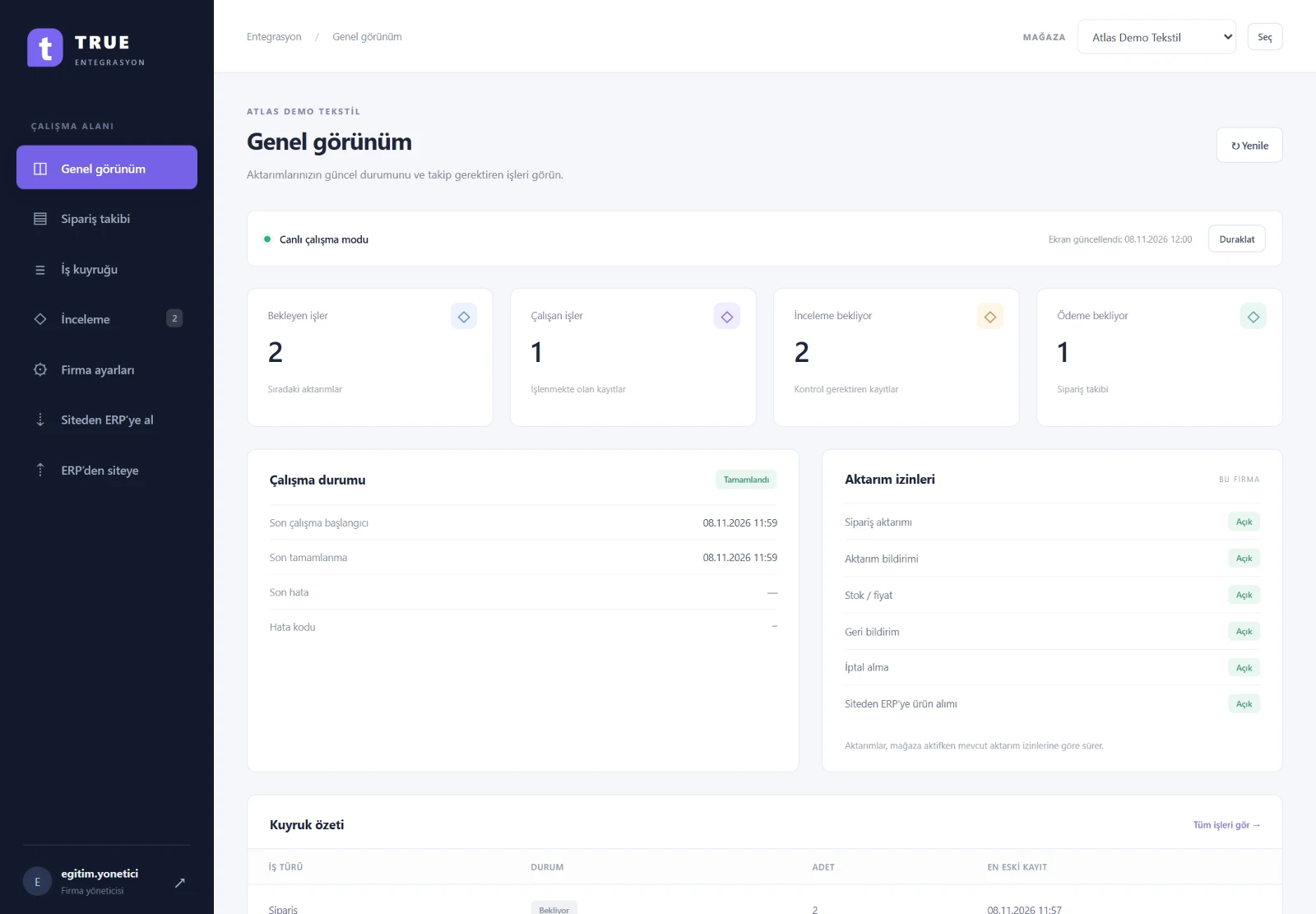
Connect product records, photos and variants. Compare and transfer only the fields you want to update in an existing product.
Define published quantities through your ERP source, branch and warehouse scope, and safety stock. Review prices together with currency and sales units.
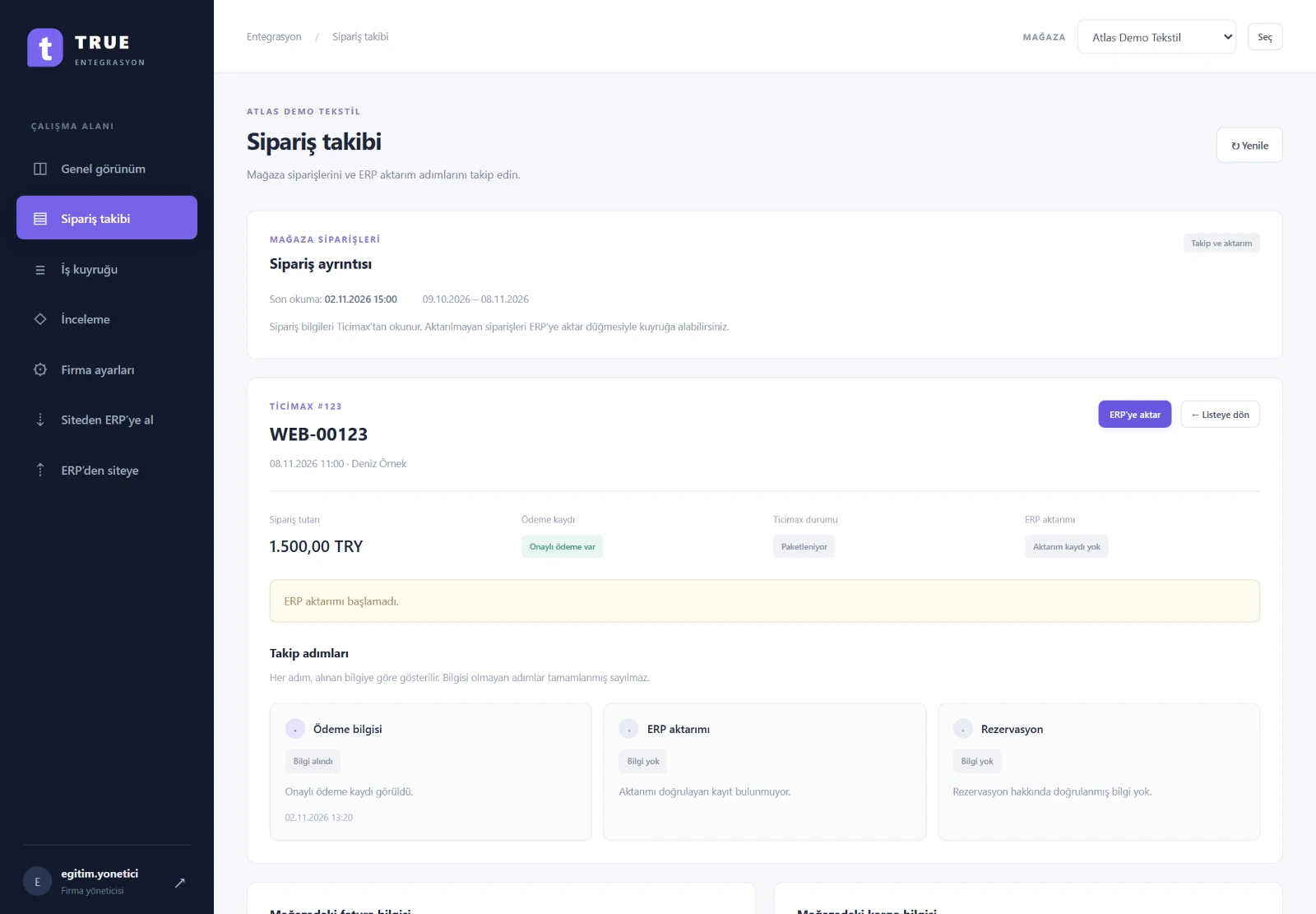
See payment checks, ERP transfer, reservations, and invoice and tracking information together.
Connected workflows
Manage product records in both directions, publish stock and prices from ERP, and bring store orders into ERP. Follow each workflow through its own record.
Available features depend on company sources, mappings, connections and transfer permissions.
Product, colour and size management
Transfer ERP products to your store. Link store products to suitable existing ERP records or import them into new records. Compare codes, names, descriptions, brands, categories, images and variants, then update your selected fields.
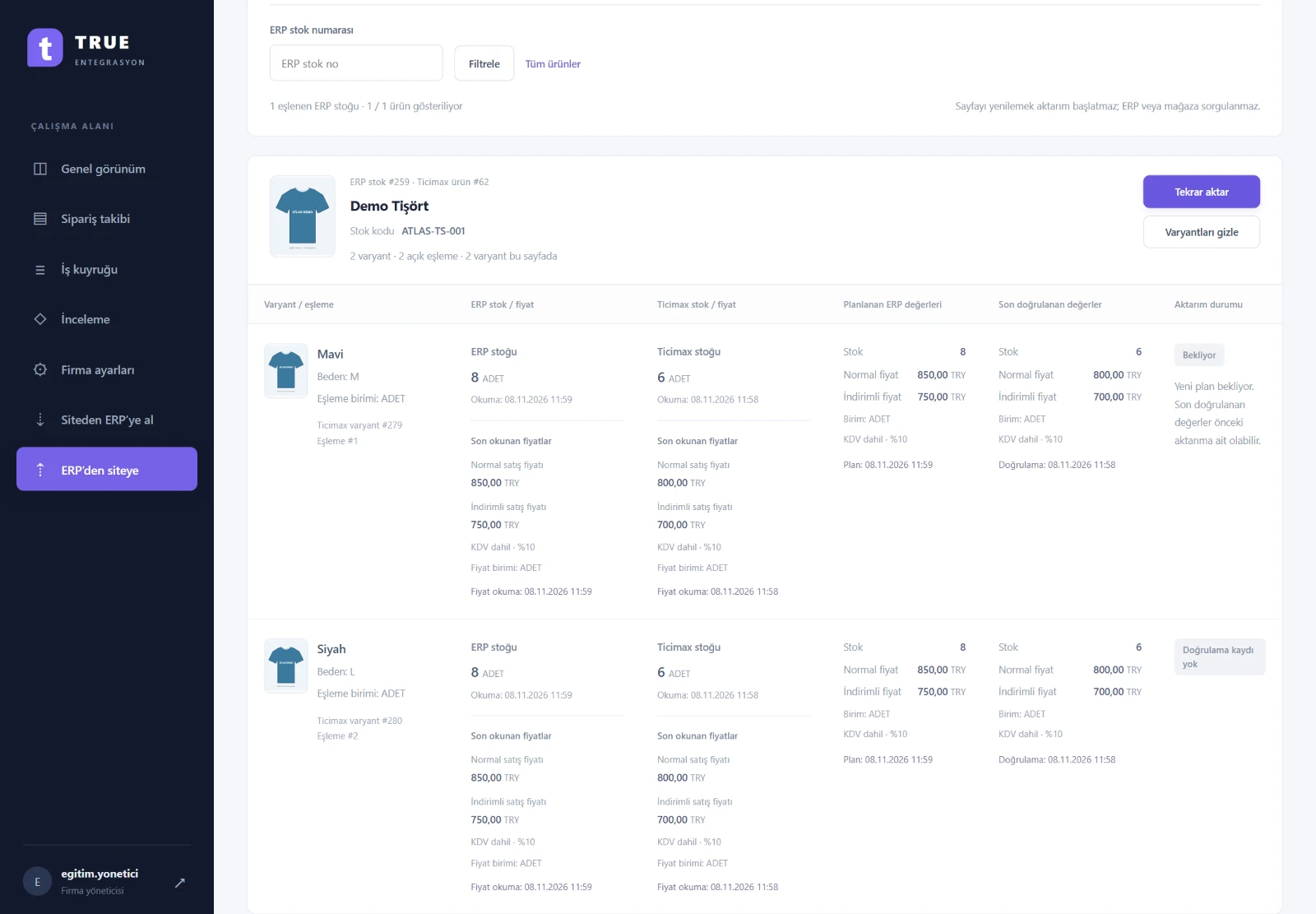
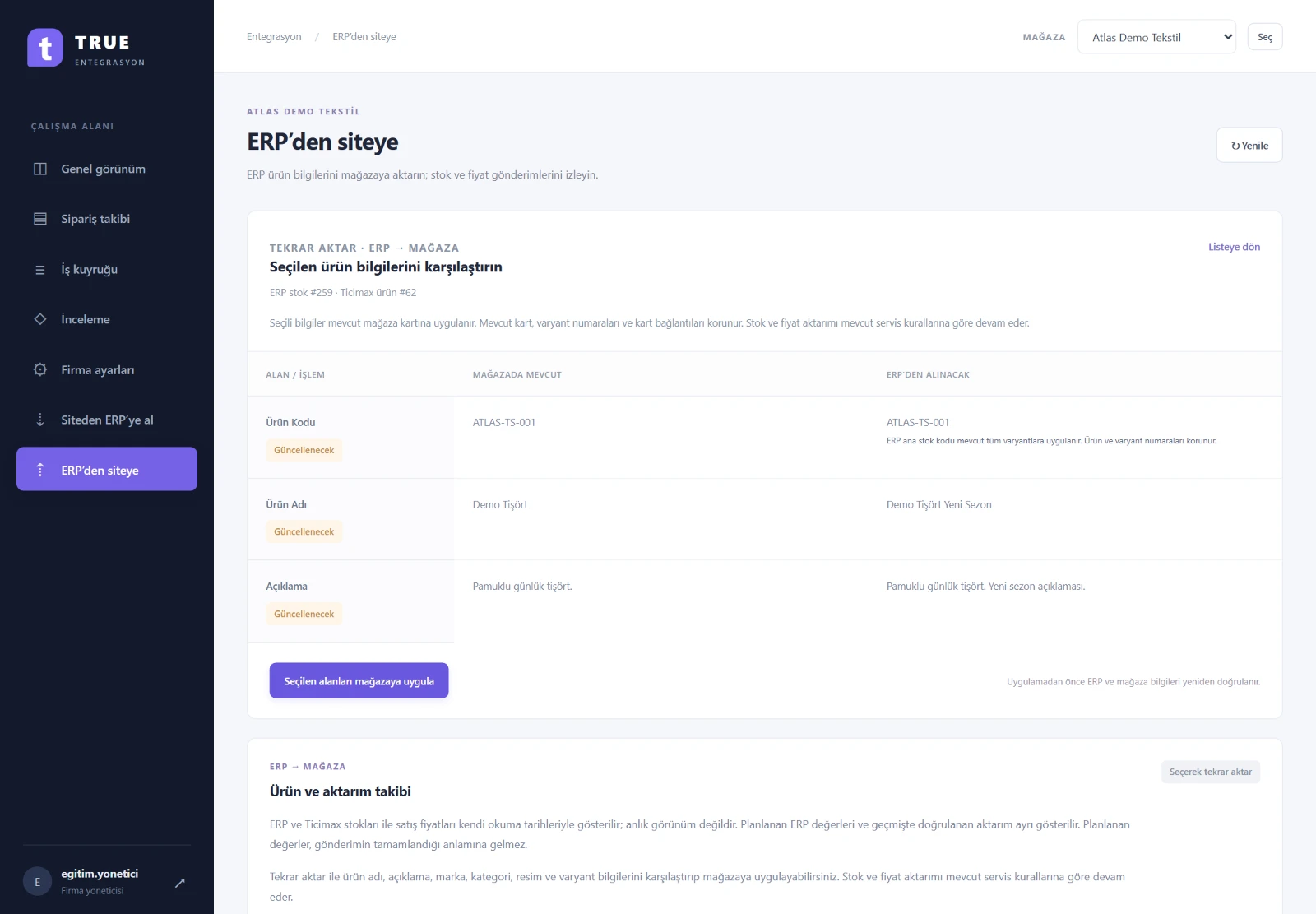
Importing products into ERP does not create stock movements; stock and price publishing is enabled separately once ERP is ready. New Ticimax products are created as inactive drafts; store visibility is managed separately.
Stock and price publishing
Use ERP stock movements or a source prepared for your company. Set the publishing scope and safety stock, and review quantities, prices and currencies together.
Orders and reservations
Find orders using status, payment and date filters. Follow ERP transfer after payment and product-mapping checks. Apply your company’s partial-reservation or review policy when stock is insufficient.
Share ERP order statuses, finalised invoice numbers and shipment tracking with the store according to enabled settings.
Fit and size charts
Use separate transfer settings for verified ERP fit information and the latest size chart. Compare fit and measurement fields alongside product information.
When the latest measurement record is incomplete, the previously published chart is retained. Follow transfer results in the panel according to product mappings and source readiness.
Central monitoring
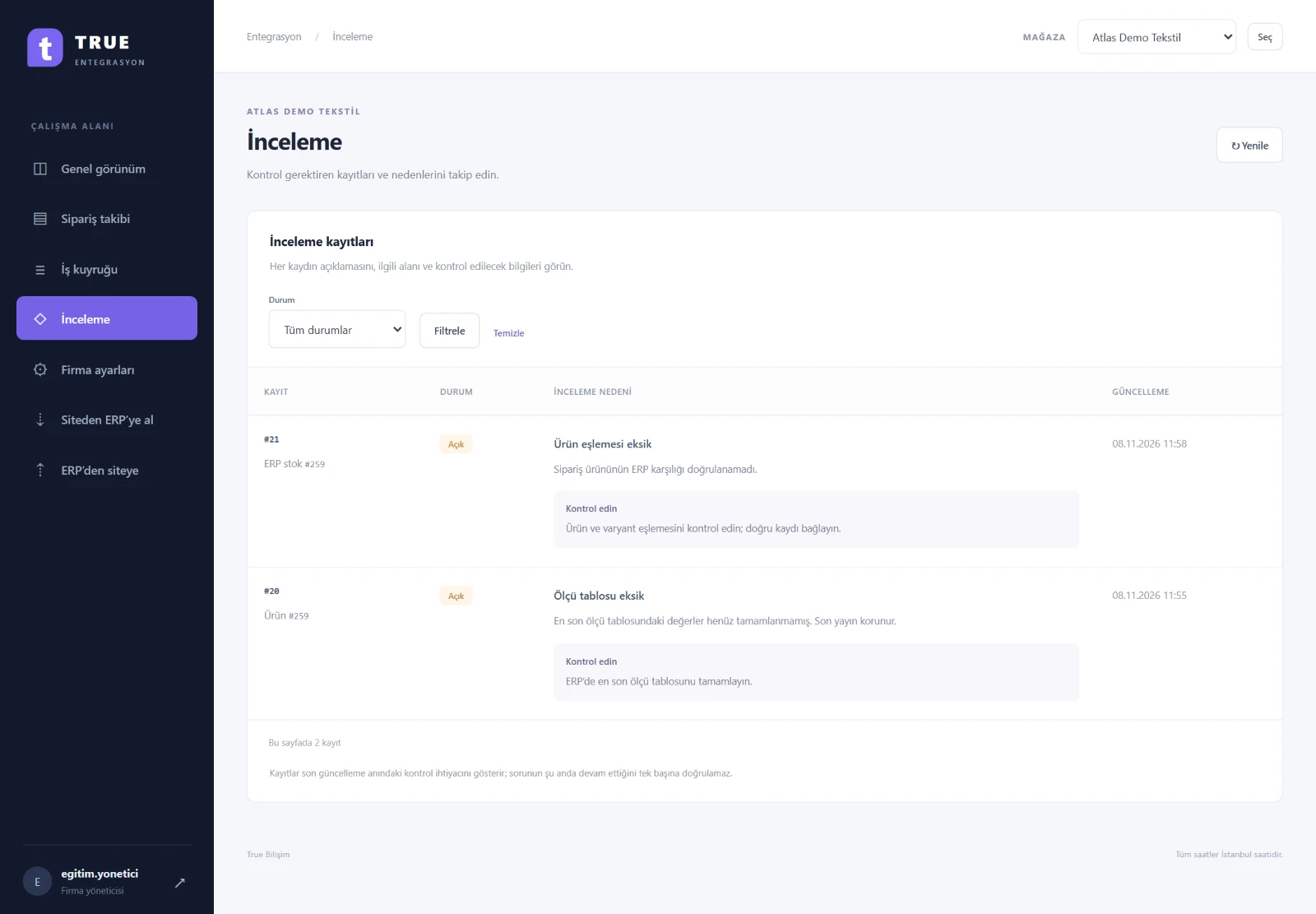
Use the overview, job queue and review screens to follow pending work, reasons and required checks. Retry eligible jobs and verify results against the relevant product or order.
A queued request does not mean its transfer is complete. The records and results shown in these images are training examples.
Setup for your business
Review your store, ERP sources and required workflows.
Verify product, colour, size, unit and currency matches.
Check product, stock, price and order results together.
Define permissions, monitoring and daily checks.
Illustrated user guide
Explore product transfers, order tracking, administrator settings and worked examples through real panel screens in the Turkish PDF guide.
Your questions
Let’s find the right approach for your business.
Product records and variants can be managed in both directions. Stock and prices flow from ERP to store; orders flow into ERP. Enabled settings support order status, invoice, tracking, fit and measurement sharing. Company sources, mappings and permissions determine the scope.
Product import transfers records and variants; it does not write store quantities into ERP or create stock movements. Publishing stock and prices to the store is enabled separately once ERP stock is ready.
New Ticimax products are created as inactive drafts. Store visibility is managed separately. Creating a product record does not mean its stock and price transfer has been confirmed.
Company settings can allow partial reservations against available stock or send the order for review. Ordered and reserved quantities are tracked separately. Reservations require ERP preparation and the relevant permissions.
The integration shares suitable, finalised ERP invoice numbers and shipment tracking with the store. The panel does not issue invoices or create shipping labels. Company settings and supported document links determine what is shared.
Prepare company sources, product mappings, transfer settings and user permissions. Validate example product, stock, price and order results together. Enable the agreed workflows after this preparation and introduce the team to daily monitoring and issue checks.
Let’s get started
Tell us about your product structure, stock source and order workflow. Explore the right scope for your Ticimax integration through an example demo.